
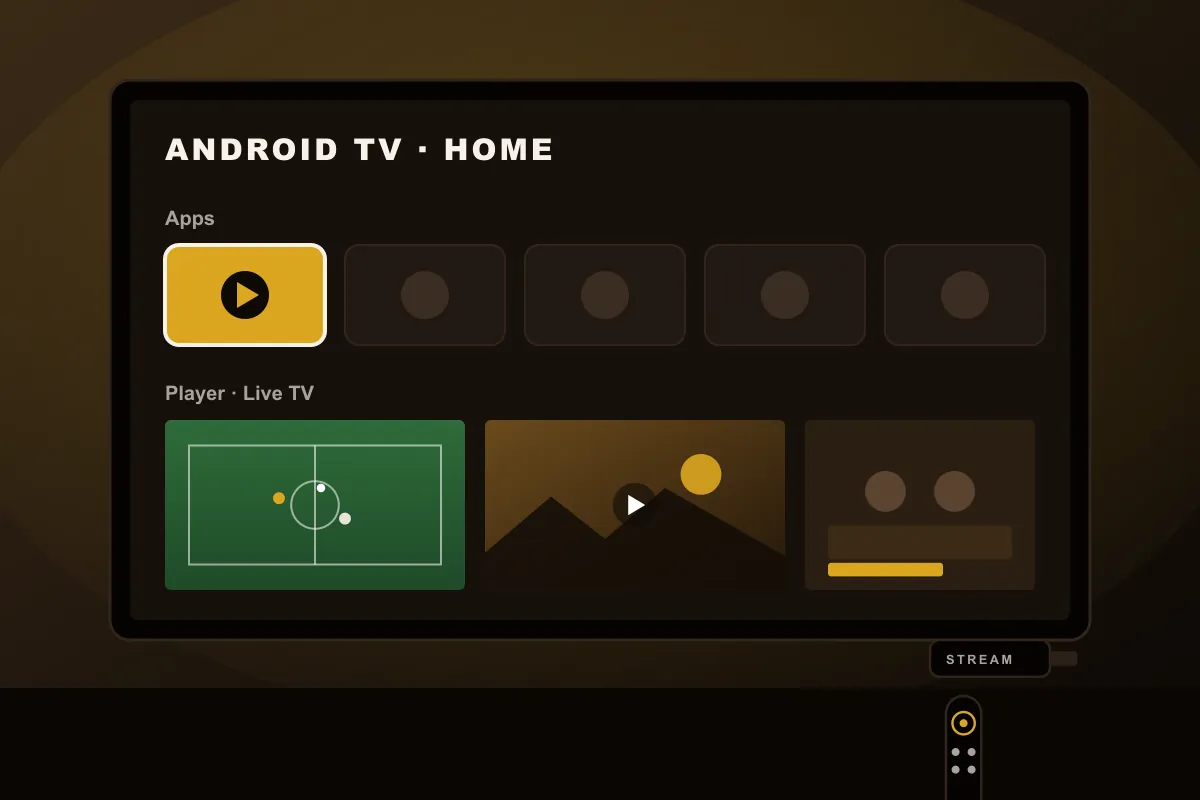
Which devices count as Android TV?
“Android TV” covers TVs and boxes that run Google’s TV operating system. That includes TVs from Sony, Philips, TCL, Hisense and others running Google TV, the Google TV Streamer, Nvidia Shield and many Android TV boxes. If your TV home screen shows Google Play and recommendations from Google, IPTV on Android TV works the same way for you.
Very cheap “Android boxes” that run a phone version of Android instead of Android TV also work, but the remote control experience is often clumsy. If you are buying something new, choose a device with official Android TV or Google TV.
What you need before you start
- Your Android TV or Google TV device, connected to the internet
- A Google account signed in on the device (to use Google Play)
- Your login details: an Xtream login (server, username, password) or an M3U URL
- About ten minutes
No login yet? Request a 24h free trial and we send the details with a recommended app for your exact model.
Step-by-step setup
- Open Google Play from the Apps row on the home screen.
- Search for a player app. Use the one we recommend with your login; several reputable IPTV players are listed in the store. Check the reviews and the last update date.
- Install and open it. Allow the permissions it asks for, such as storage for recordings or the guide cache.
- Add a playlist or user. Choose “Xtream Codes” (or “Xtream API”) if you have a server address, username and password. Choose “M3U URL” if you have one long link.
- Enter the details exactly as sent. The server address usually starts with
http://and may end with a port number such as:8080. Copy it character by character. - Wait for the first load. The app downloads the channel list, the movie and series library and the TV guide. The first time can take a minute.
- Open a live channel. If it plays, your setup works.
Typing long addresses with a remote is tedious. Many apps let you add the login from a phone or a web page; alternatively, install the Google TV app on your phone and use it as a keyboard.
Settings worth changing
- Time zone or EPG offset: set it so “now playing” matches your clock. Our EPG guide explains why it drifts.
- Player engine: many apps let you switch between a hardware and a software decoder. If a channel stutters, try the other one.
- Buffer size: a slightly larger buffer can smooth out an unstable Wi-Fi connection.
- Auto-start: some apps can open on the last channel when the TV turns on.
- Display mode: on 4K TVs, enable frame-rate matching if the app offers it, so sport at 50 or 60 frames per second looks smooth.
Fixing buffering on Android TV
Most playback problems on Android TV come from the home network, not the device:
- Connect with an Ethernet cable if your TV or box has a port. It is the single biggest improvement.
- On Wi-Fi, use the 5 GHz network and keep the router within one room if possible.
- Clear the player app’s cache in Settings › Apps if the guide or lists stop loading.
- Restart the device once a week; Android TV builds up background tasks over time.
- Run a speed test at the same hour the problem happens. Full HD needs about 10 Mbps stable, 4K about 25 Mbps.
Android TV vs Fire TV vs Smart TV apps
Fire TV runs a version of Android too, but uses Amazon’s Appstore, so app choice differs. Our Firestick guide covers that platform. Samsung and LG TVs use their own systems with fewer IPTV apps; see the Smart TV guide. Of the three, IPTV on Android TV usually offers the widest app choice and the best guide support.
Want to try it on your own device first? Request a free test on the IPTV test page.